
An iPad on the wall turns into a check-in station, a meeting room scheduler, a menu, a smart-building control or a self-service order point. Done well, it looks built in. Done badly, it wobbles, the cable dangles and someone walks off with the tablet.
This guide walks through how to mount an iPad or any tablet to a wall in a business setting, from choosing the mount to the last screw.
Step 1: Choose the right type of wall mount
Start with how people will use the screen. Four mount styles cover nearly every job:
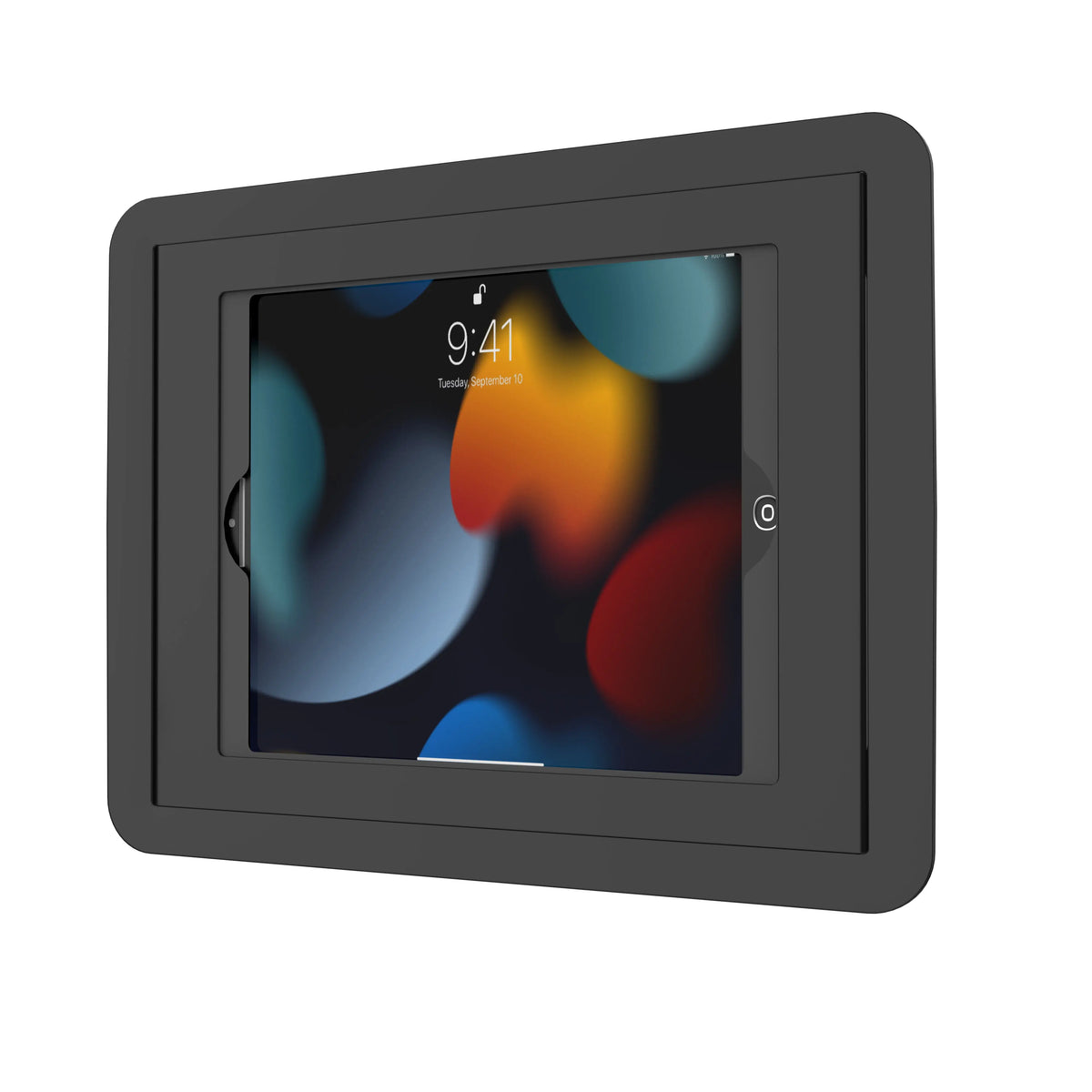
- Flush enclosures sit tight to the wall and frame the tablet, like a built-in panel. The Universal Flush-to-Wall Mount and Secure Locking Enclosure installs vertically or horizontally and suits room schedulers and wayfinding screens.
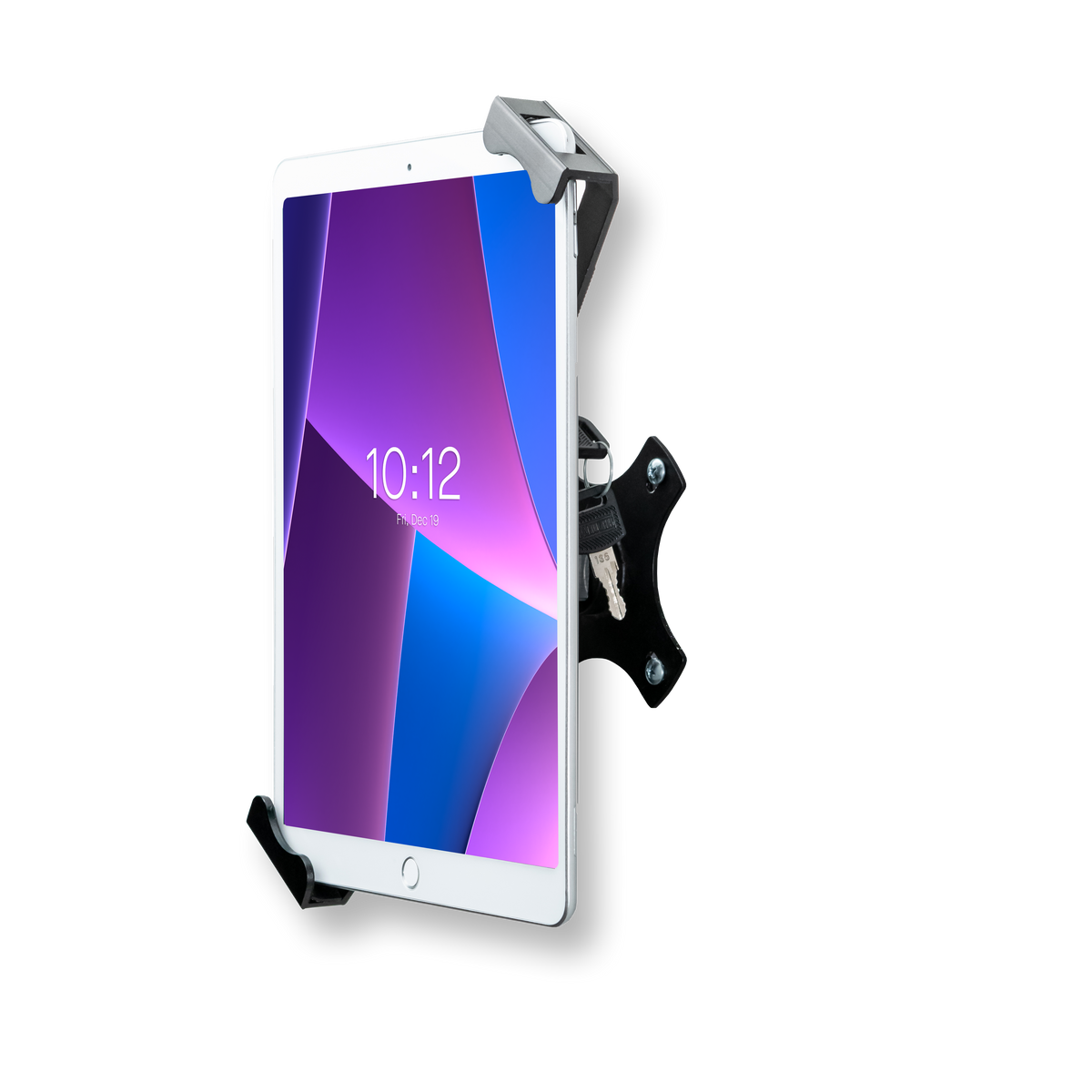
- Low-profile grips hold the tablet by its corners and leave ports open for card readers and headphones. The Compact Security Wall Mount barely extends from the wall and locks with a key.
- Rotating mounts switch between portrait and landscape. The Rotating Wall Mount turns a full 360 degrees.
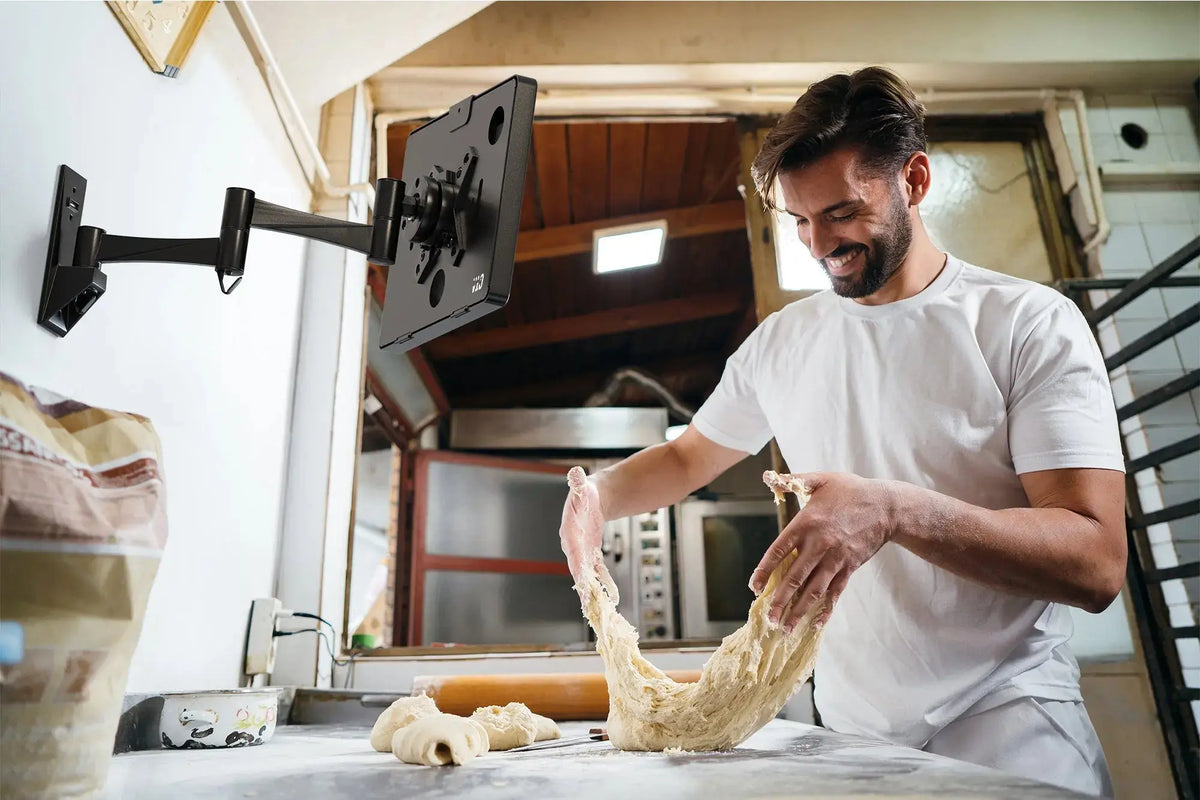
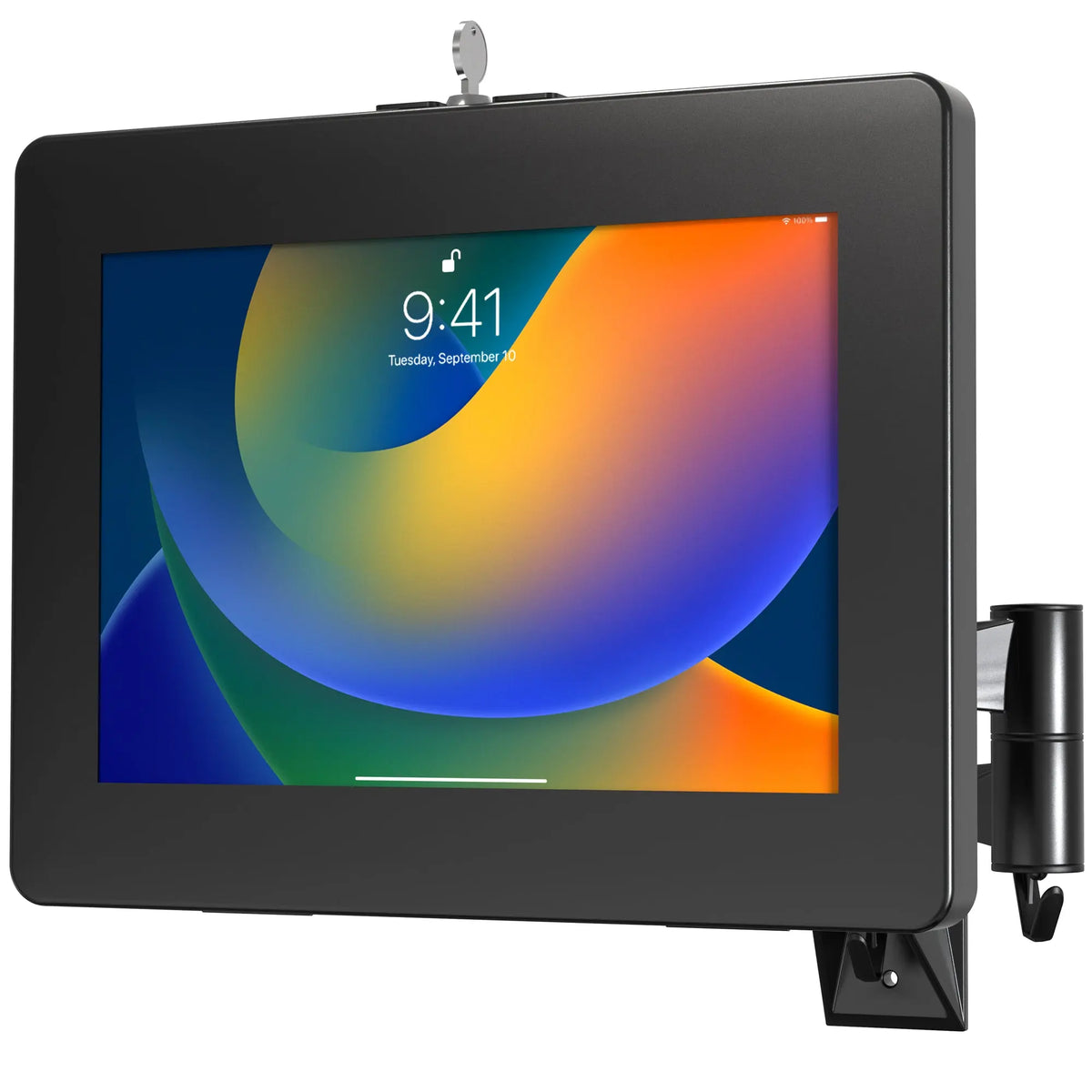
- Articulating arms pull the screen out and angle it toward the user, then fold back. The VESA Wall Mount Arm with Enclosure extends from 2 to 14.4 inches.

Step 2: Decide how much security you need
In a back office, an open grip may be all you need. Anywhere the public can reach the screen, lock it.
- Key locks are simple and reliable. The Premium Locking Wall Mount Enclosure uses sliding internal clips to fit the tablet and a lock and key to close it.
- Code locks remove the hunt for keys. The Universal Digital Password Locking Security Wall Mount Enclosure opens with a programmable 4-digit code and has a rechargeable lock.
- Covered buttons. A full enclosure that covers the home button and frame keeps users inside your app.
Step 3: Pick the spot and the height
Before you drill, stand where the user will stand.
- Height. For standing users, center the screen near eye level. For check-in or kiosk screens that seated or wheelchair users will reach, keep controls lower.
- Glare. Avoid spots facing a window or under a bright downlight.
- Traffic. Leave room for a short line to form without blocking a doorway or corridor.
- Wi-Fi. Check signal strength at the exact spot, not just in the room.

Step 4: Plan power before you drill
A tablet that runs all day needs power. You have two clean options:
- Surface cable. Route the charging cable through the mount and down to the nearest outlet. Use a cable raceway painted to match the wall so it disappears.
- In-wall power. Have an electrician add an outlet or a recessed power and data box behind the mount. The cable never shows.
Use a cable long enough to allow rotation or arm movement without strain on the connector.
Step 5: Install the mount
Most tablet wall mounts follow the same sequence:
- Find what is behind the wall. Use a stud finder and check for pipes and wiring.
- Mark the holes. Hold the wall plate in place, level it, and mark through the mounting holes.
- Drill and anchor. Screw into a stud where you can. In drywall without a stud, use anchors rated for the weight of the mount plus the tablet. In concrete or brick, use masonry anchors.
- Fix the wall plate and check it is level and solid before adding the tablet.
- Fit the tablet into the grip or enclosure, adding any foam inserts so it sits snugly, then connect power.
- Lock it and test the screen, buttons, camera and charging.

Step 6: Lock down the software
Hardware keeps the tablet on the wall; software keeps it on task. On an iPad, Guided Access locks the screen to one app. Fleets usually use a mobile device management tool to set single-app mode, push updates and restrict settings. Turn on auto-brightness and set the display to stay on during business hours.
Special surfaces: glass, tile, poles and corners
Not every spot is a plain drywall partition.
- Glass and mullions. Storefronts and glass meeting rooms often have aluminum mullions between panes. A mullion mount clamps to the frame so you do not drill the glass. See the mullion mounts.
- Tile. Drill slowly with a tile bit, tape the spot first to stop the bit wandering, and anchor into the wall behind the tile.
- Poles, beams and corners. An adapter such as the Articulating VESA Plate for Poles, Beams, and Corners gives you a flat VESA surface where there is no flat wall, and any VESA-compatible enclosure attaches to it.
Keep it working after install
A few habits keep wall-mounted tablets reliable:
- Wipe the screen and enclosure on a regular schedule, especially in healthcare and food service.
- Check the mount is still tight every few months; doors slamming and heavy use loosen screws over time.
- Watch battery health. A tablet charging around the clock benefits from an optimized charging setting or a smart outlet that limits charge hours.
- Keep a spare key or a record of the lock code somewhere your team can find it.
Common mistakes to avoid
- Measuring the mount to the edge of the tablet instead of checking the model and generation it fits.
- Skipping anchors in drywall.
- Leaving the charging cable loose where it can be pulled or tripped over.
- Mounting too high for the people who need to use the screen.
Compare options in the full tablet wall mounts collection, including flush, rotating, articulating and locking styles.