
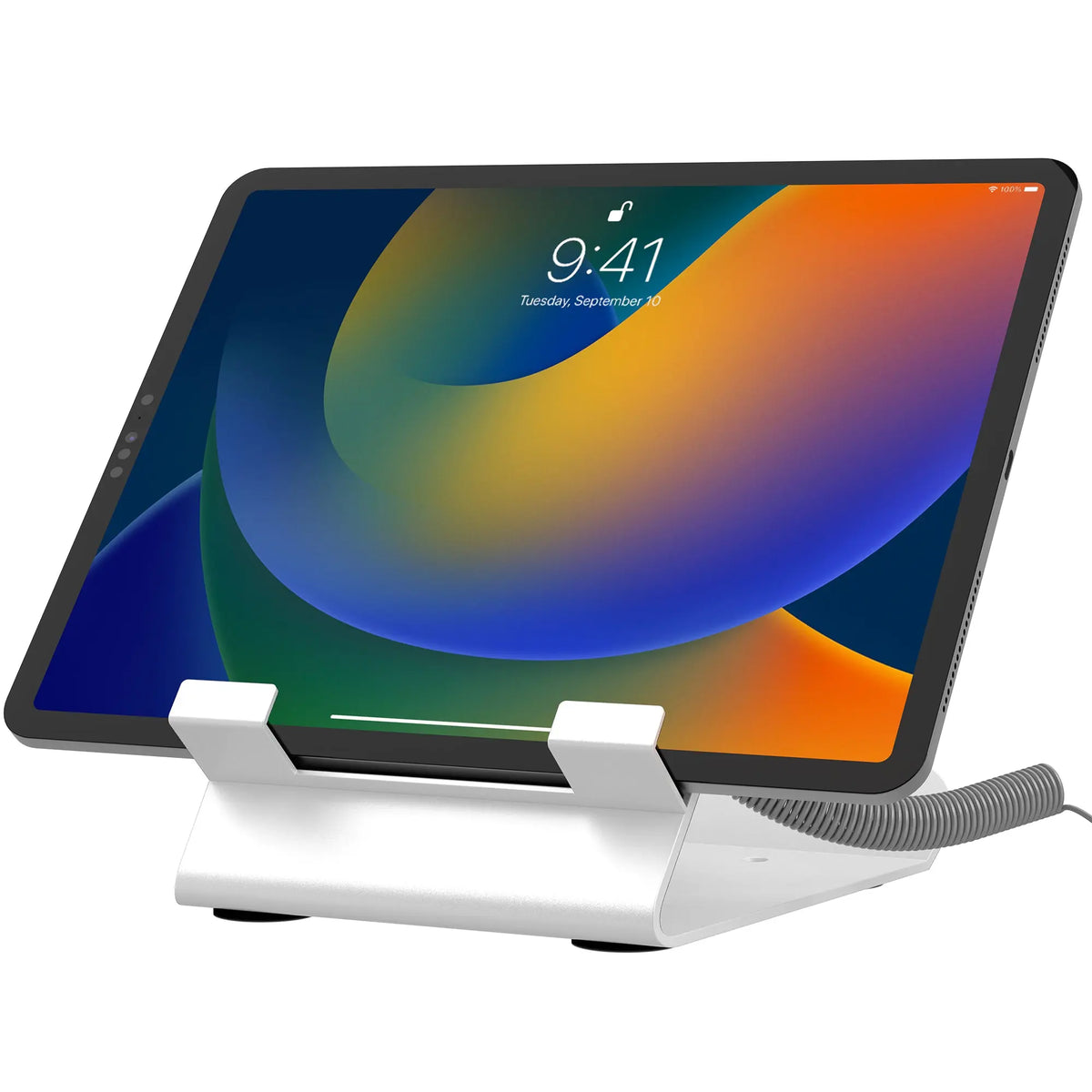
An iPad at the counter is a register, a sign-in sheet and a menu in one. It is also a few hundred dollars of hardware sitting in reach of every customer. A locking iPad stand solves both problems: it holds the tablet at a usable angle and makes sure it is still there at closing time.
This guide explains the lock types, the stand styles and the details that separate a stand your staff will like from one they will work around.
Two kinds of lock, and why most counters use both
Locking stands protect the tablet in two different ways.
- Enclosure locks close a case or frame around the tablet and lock it with a key. The tablet cannot be lifted out without unlocking the enclosure.
- Cable locks anchor the stand or the tablet to something fixed, such as a counter leg or pipe, with a steel cable. The whole setup cannot be carried away.

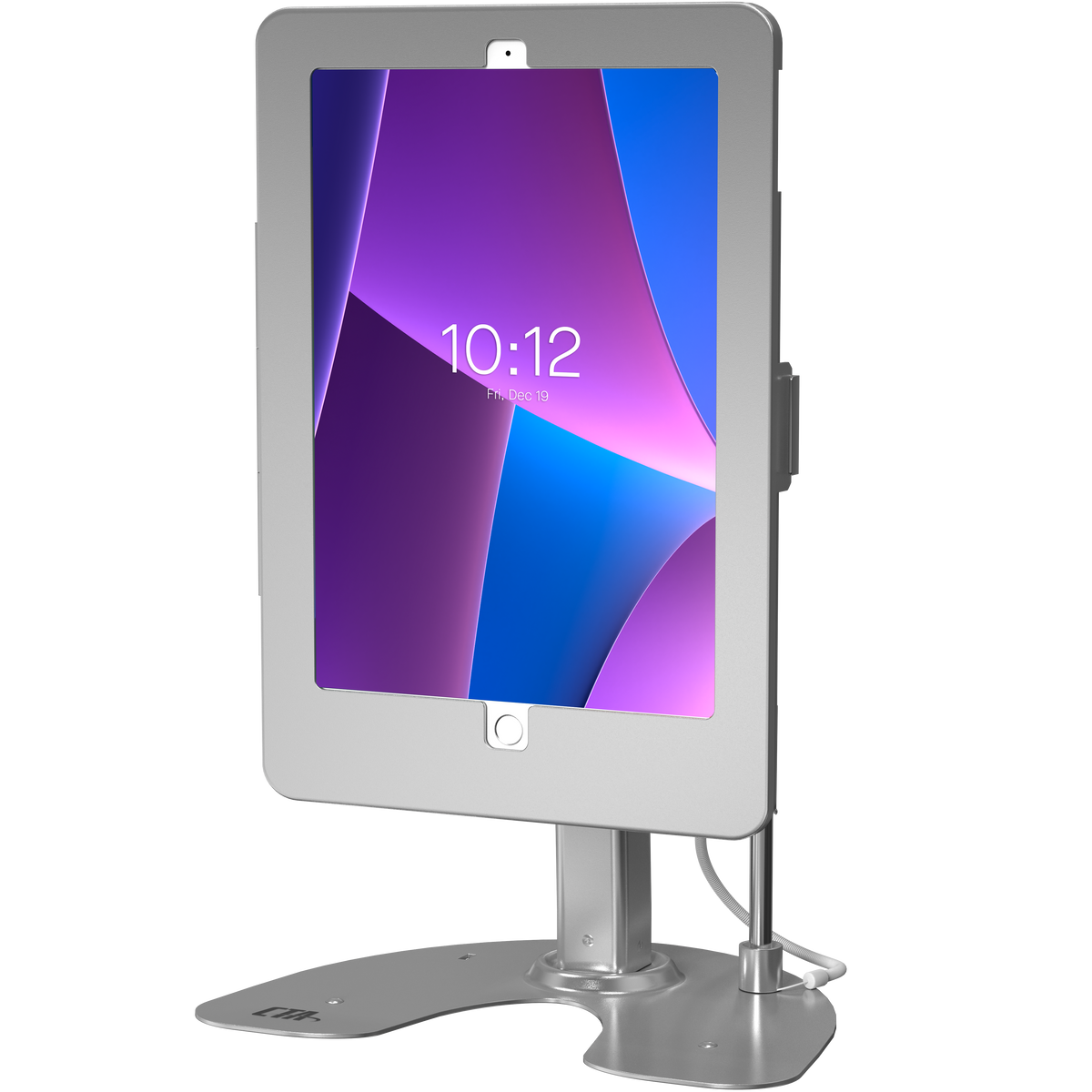
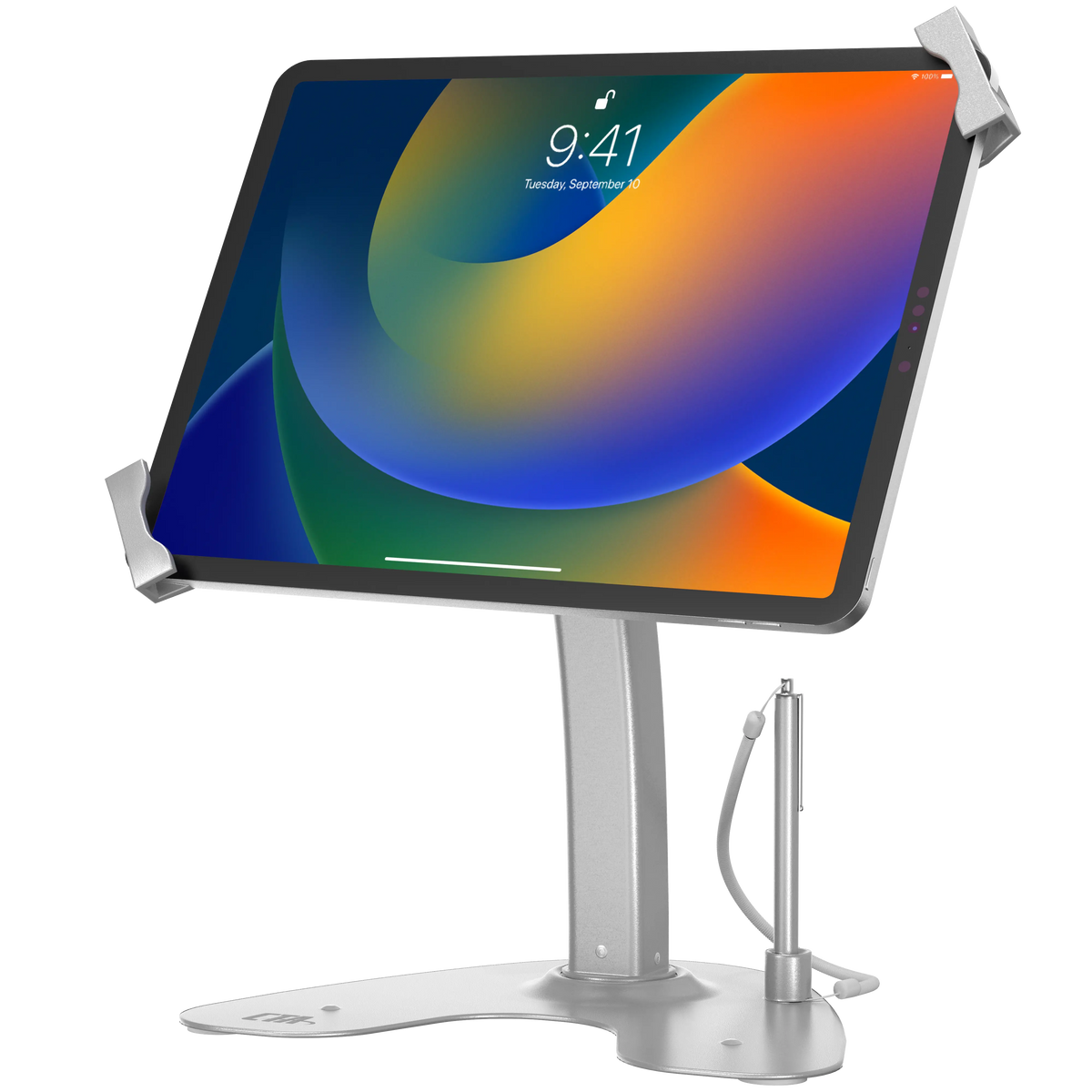
The Universal Dual Security Kiosk with Locking Holder and Anti-Theft Cable combines both: a lock and key on the holder for 7 to 13 inch tablets, and a galvanized steel cable that attaches to the base. For counters that already have a stand, the Security Cable Locking Desk Mount screws into the desk and anchors the device with a keyed steel cable.
Match the stand to the job
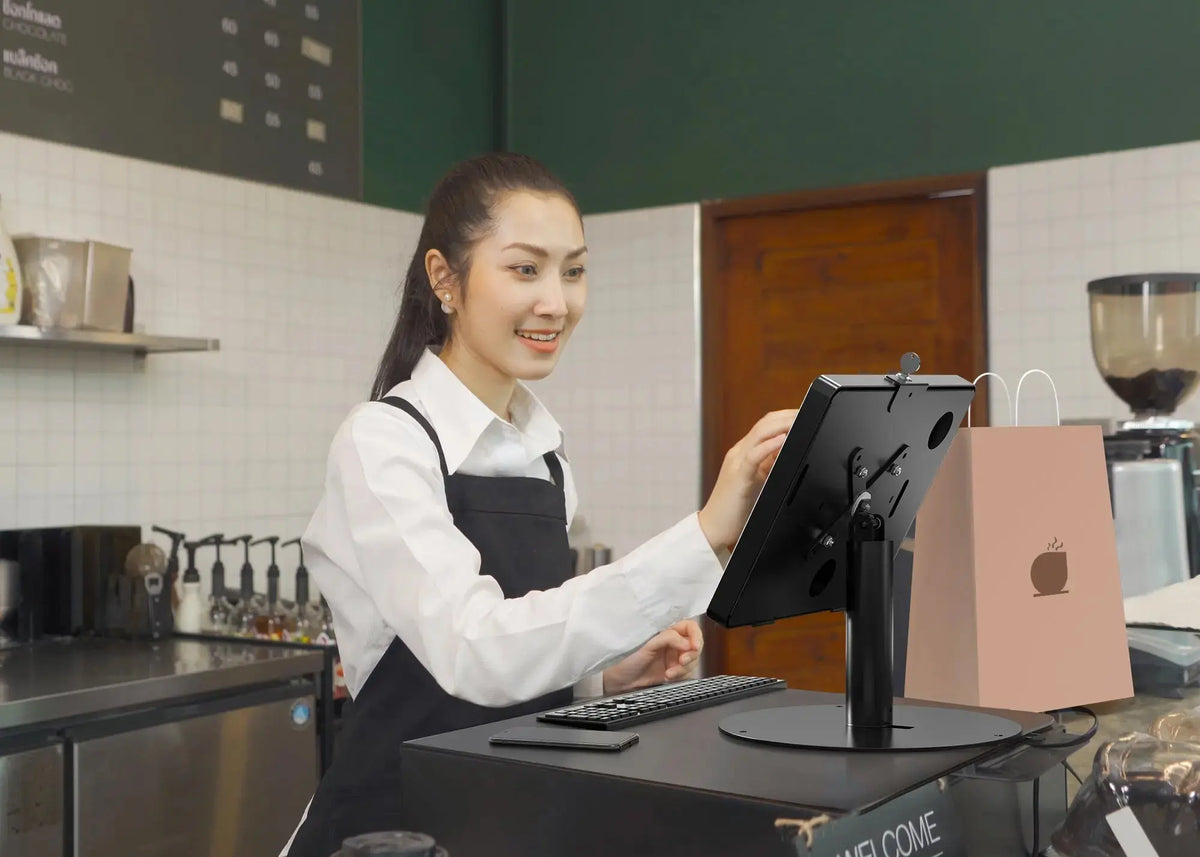
Checkout and point of sale
At a register the screen often has to face the cashier and then the customer. Look for a holder that flips front to back or a base that swivels.
The Dual Security Kiosk Stand with Locking Case and Cable has a base that rotates 360 degrees and an enclosure that flips fully front to back, so the customer can sign or tip without anyone picking up the tablet.

Front desks and reception
Here the stand is on display all day, so a clean look matters as much as the lock. The Hyperflex Security Tablet Kiosk Stand uses an aluminum enclosure with a lock, a hollow stand that hides the charging cable, and two 360-degree swivels.
Fitted, low-profile counters
The Anti-Theft Kiosk with Fitted Security Enclosure uses a hinged aluminum enclosure with a lock and key, a mount head that rotates 360 degrees and pre-drilled holes for optional permanent mounting. It also includes a tethered stylus.

Lobbies and self-service
When the tablet is unattended, raise it off the counter and lock everything. A floor stand kiosk such as the Premium Locking Floor Stand Kiosk puts the screen at standing height in a locking enclosure, with no counter space needed.
What to check before you buy
- Tablet fit. Universal holders adjust to a size range; fitted enclosures match specific models. Confirm your iPad model and generation.
- Port and button access. Make sure the charging port, camera and any card reader stay reachable, and that the home button is covered if you want users kept in one app.
- Cable routing. A hollow stem or channel keeps the charger out of sight and out of reach.
- Base mounting. Pre-drilled holes let you bolt the base down; a cable lets you anchor it without drilling.
- Movement. Decide whether you need swivel, tilt, flip or portrait and landscape rotation.
- Keys or codes. Plan who holds the keys. Keyed-alike options are worth asking about for larger rollouts.

Setting up a locking stand
- Place the base where staff and customers can both reach the screen, away from the edge of the counter.
- Anchor it. Bolt the base through its pre-drilled holes, or loop the security cable around a fixed point such as a counter leg.
- Route the charger through the stem or channel before you close the enclosure.
- Fit the tablet with any foam pads or inserts so it sits snugly and does not rattle.
- Lock it and test every movement: swivel, tilt, flip and rotation, with the cable connected.
- Turn on single-app mode with Guided Access or your device management tool so customers stay in your app.
Signs your counter needs a locking stand
- The tablet sits on a basic stand or a case with a kickstand.
- Staff take the iPad to the back at night because they do not trust leaving it out.
- The counter is unattended at times, such as during rushes, breaks or after hours.
- The charger is a loose cable that customers can unplug.
- You have already lost a tablet, or a card reader with it.
Any one of these is reason enough to upgrade. Theft is only part of it: a stand that holds the screen at the right height and angle also speeds up every transaction.
Locking stand or locking enclosure on the wall?
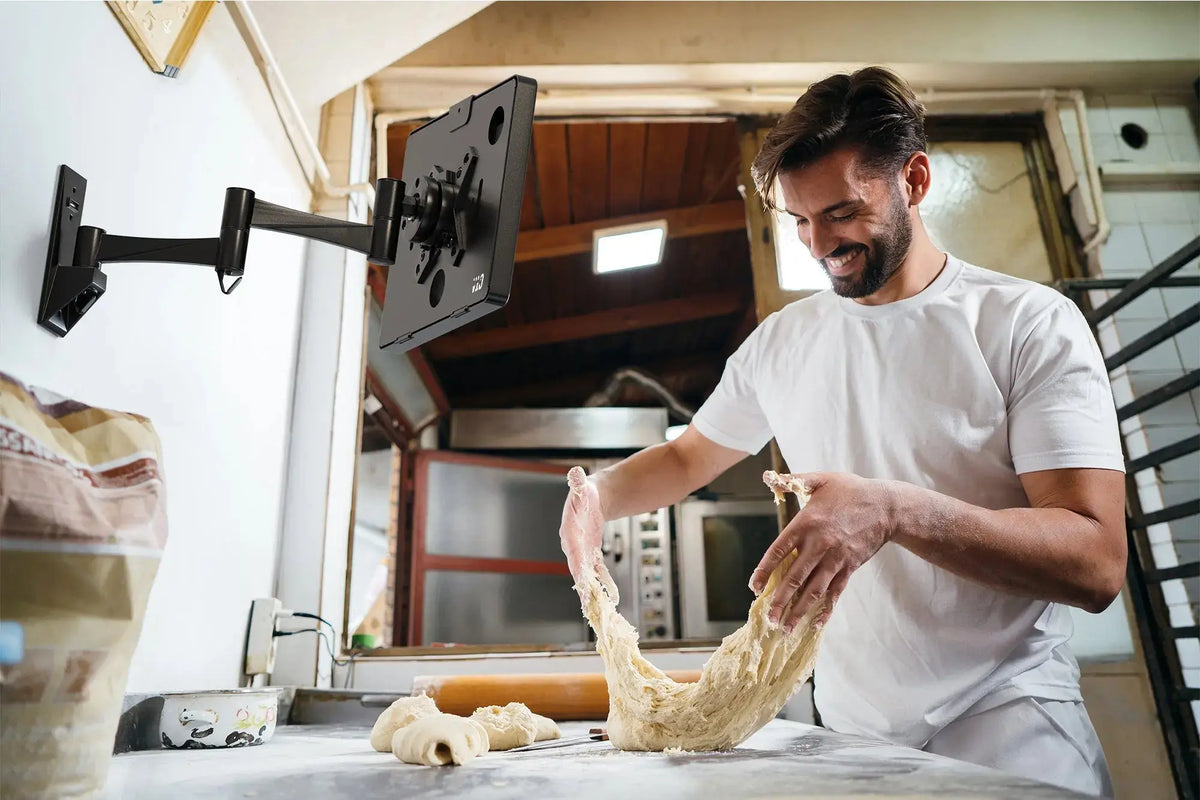
If counter space is tight or the screen does not need to turn, a wall-mounted locking enclosure can do the same job. Stands win when the screen has to move between staff and customer, or when you rearrange the space often.
Compare desk and counter options in the tablet kiosk and desk stands collection.